Welcome! This guide will show you how to customize your WordPress website, choose a theme, and publish your very first blog post.
Every blog post you publish on your WordPress website will also appear on your Voyager profile, making it visible to other members on the Voyager community. This allows you to build your portfolio, share your knowledge, and connect with fellow bloggers while gaining hands-on experience with WordPress.
One of Voyager’s goals is to help aspiring bloggers learn by doing. You can create a free WordPress website within minutes, experiment with different themes, and apply everything you learn from the articles and tutorials available on Voyager.
Let’s get started!
If you do not remember your log in link, go to your email that you have received when you created the free account and WordPress website.
Let’s go through it in more detail.
Step 1: Check Your Email
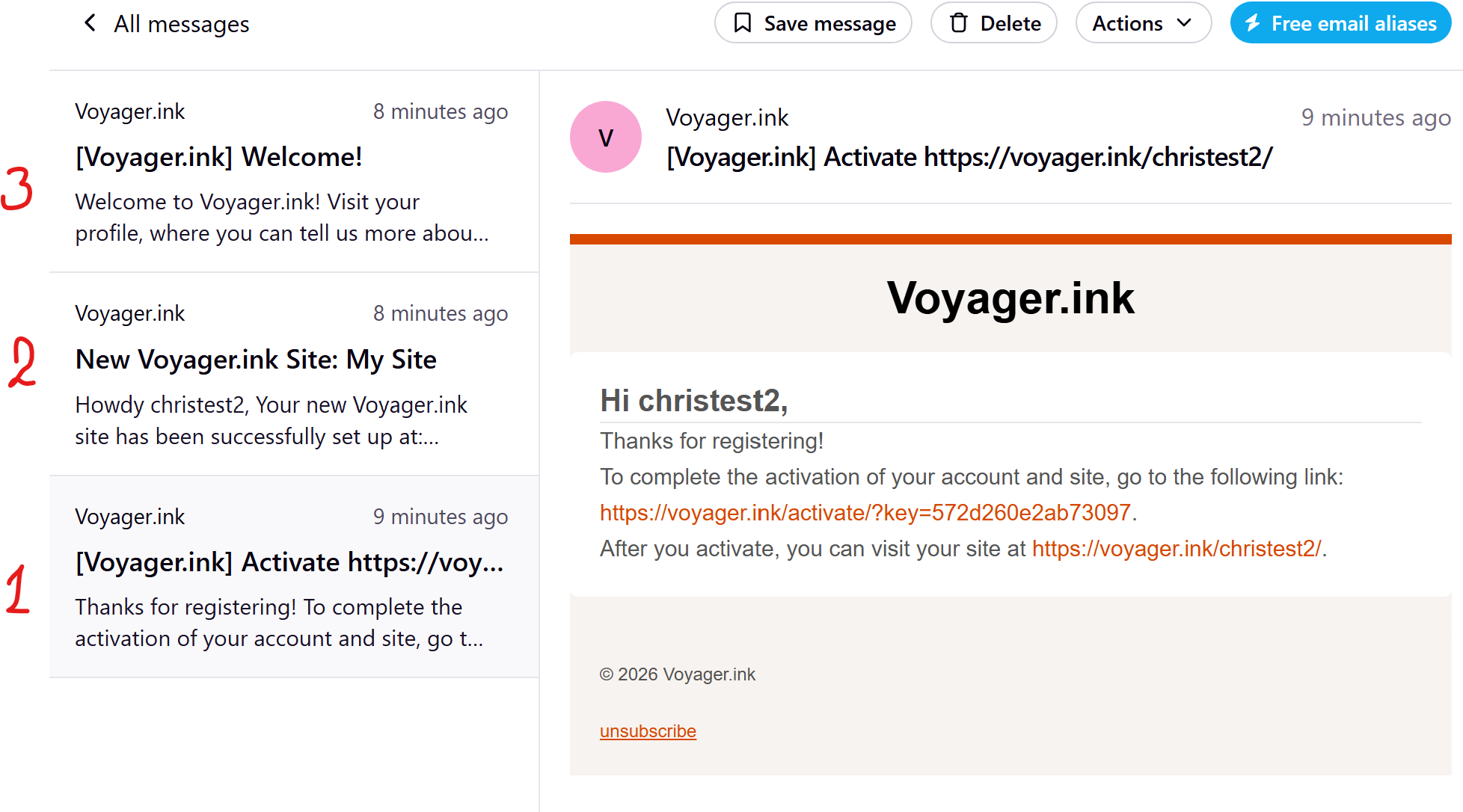
After creating your Voyager account and requesting your free WordPress website, you will receive three emails.
Email 1: Activate Your Account
The first email asks you to activate your Voyager account.
Once you activate your account, you will be able to log in, and the remaining emails will be sent automatically.
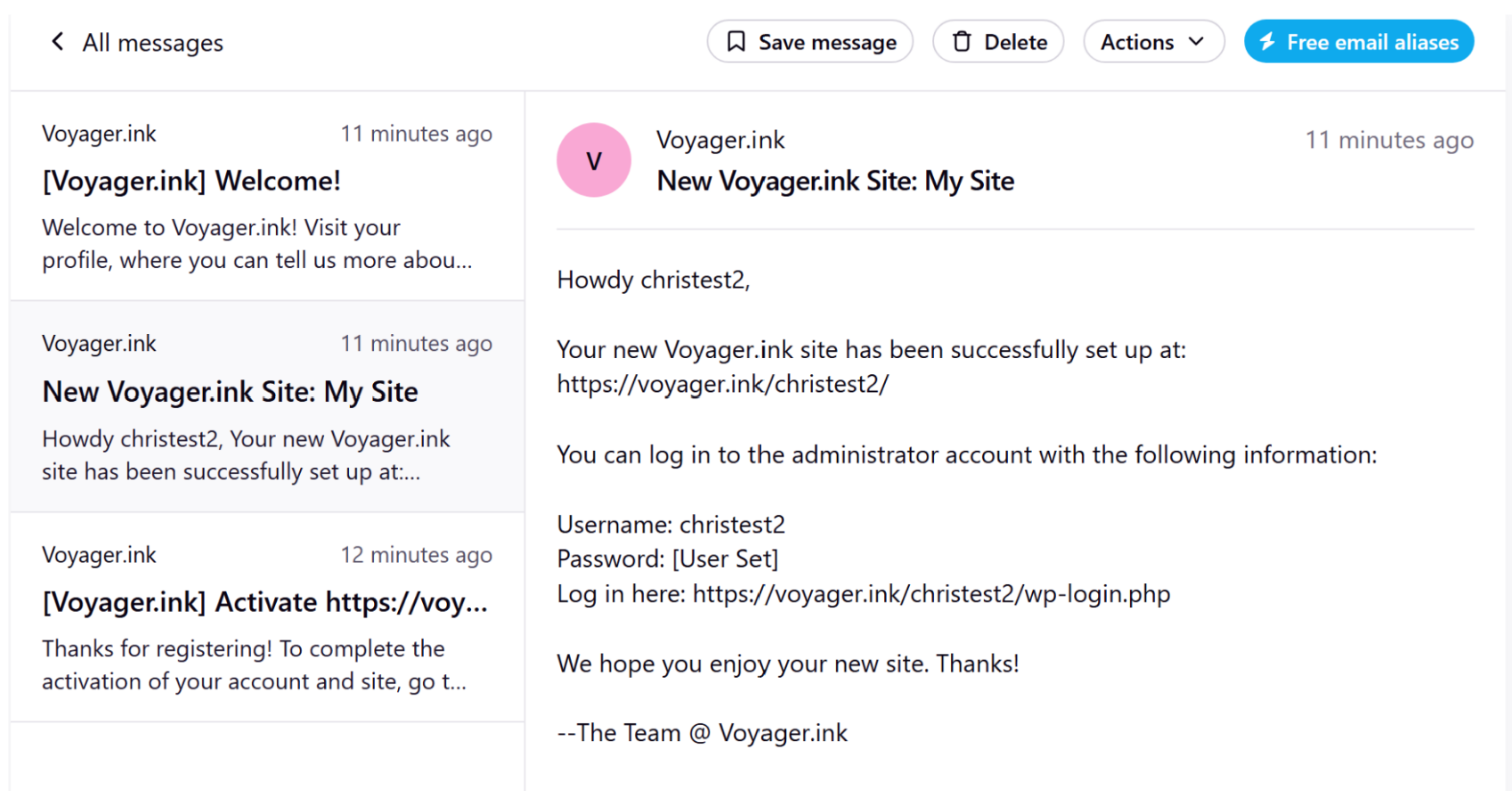
Email 2: Your WordPress Website Details
The second email contains everything you need to access your website, including:
- Your website address
- Your WordPress username
- Your password
- A login link to your WordPress dashboard
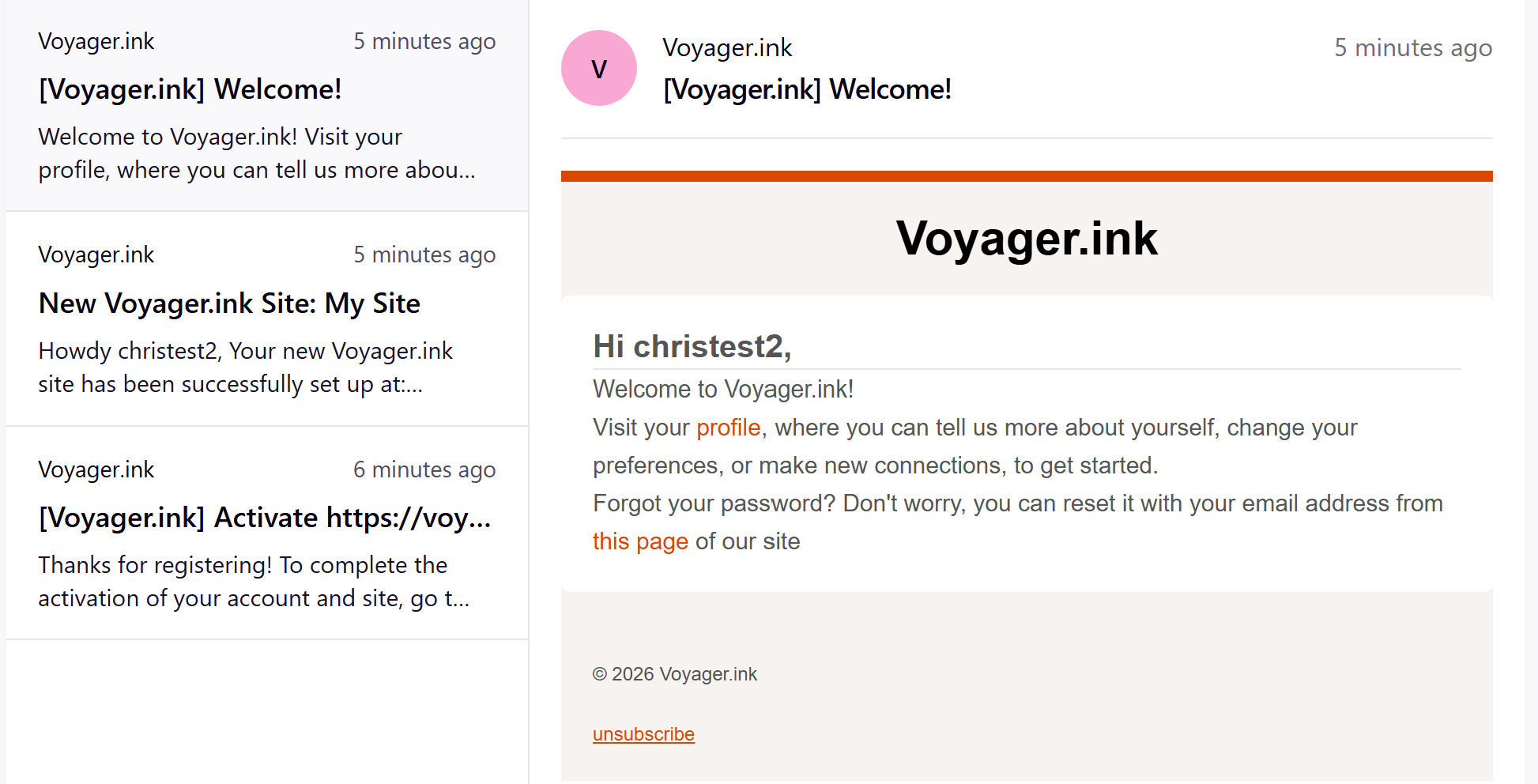
Email 3: Your Voyager Profile
The third email includes information about your Voyager profile, where your published blog posts will also be displayed for other members to discover.
Step 2: Log In to Your WordPress Dashboard
Use the login link and credentials from the second email to access your WordPress dashboard.
After logging in, you will see the WordPress administration panel.
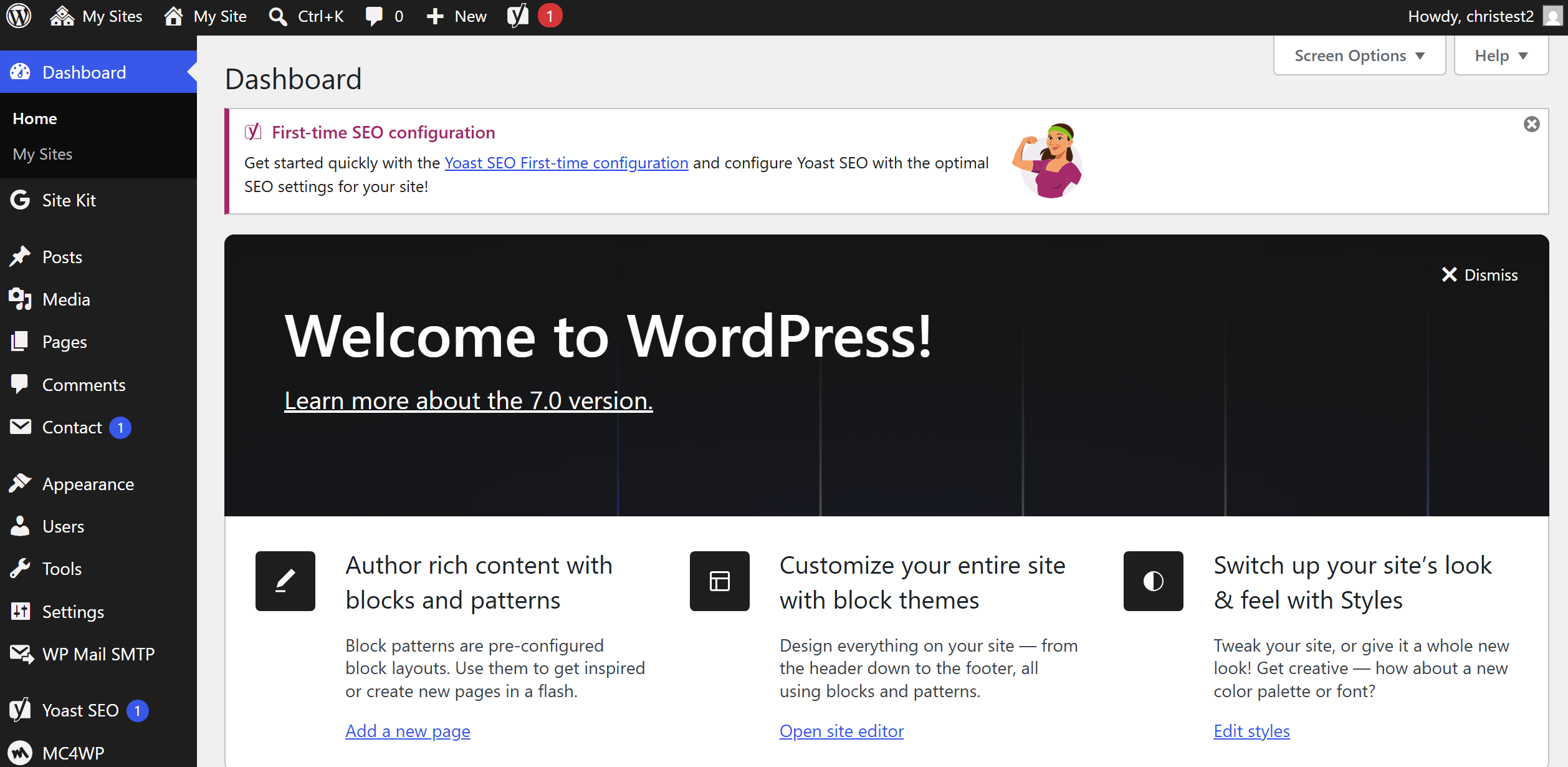
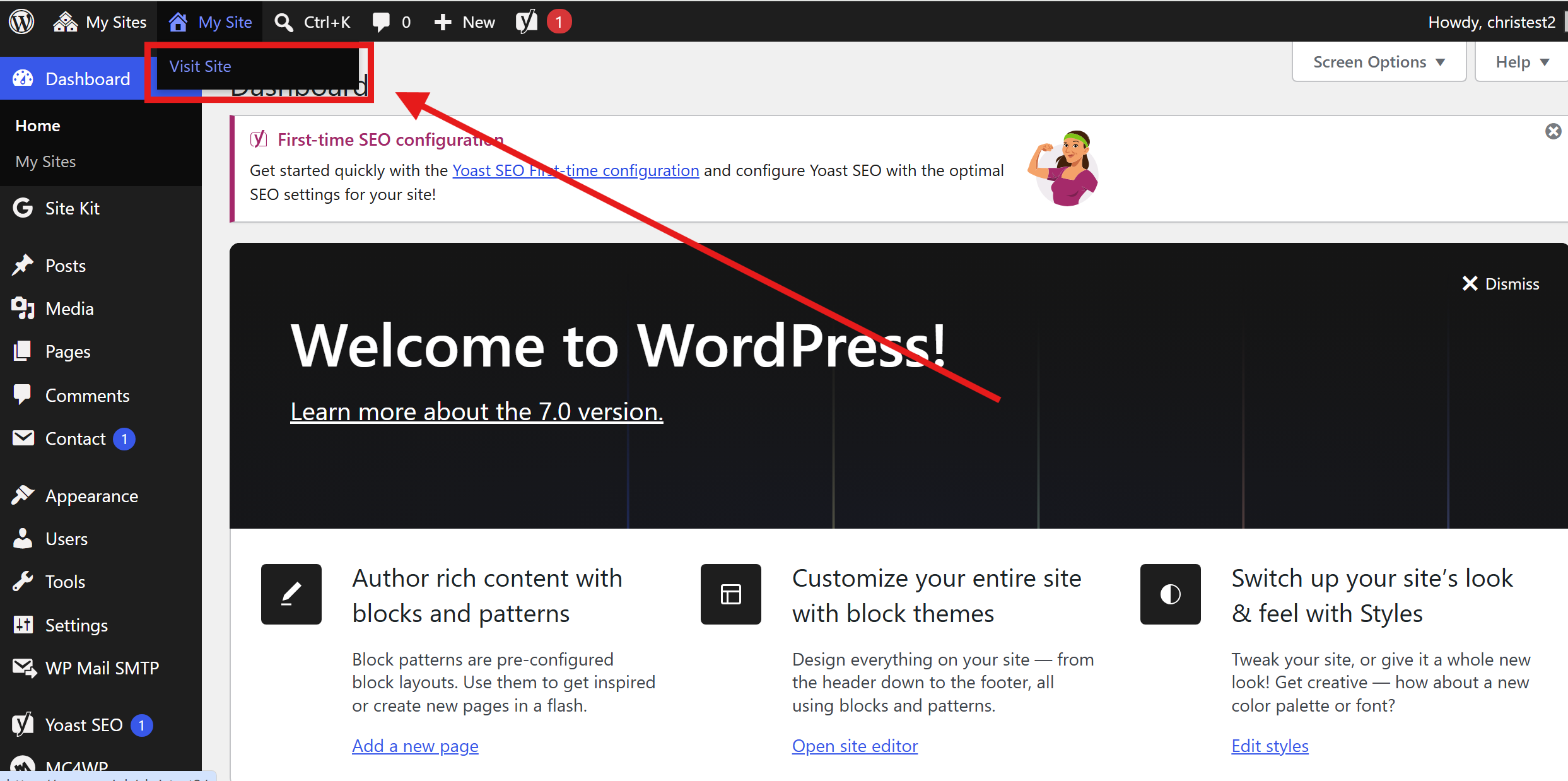
To view your website, navigate to:
My Site → Visit Site
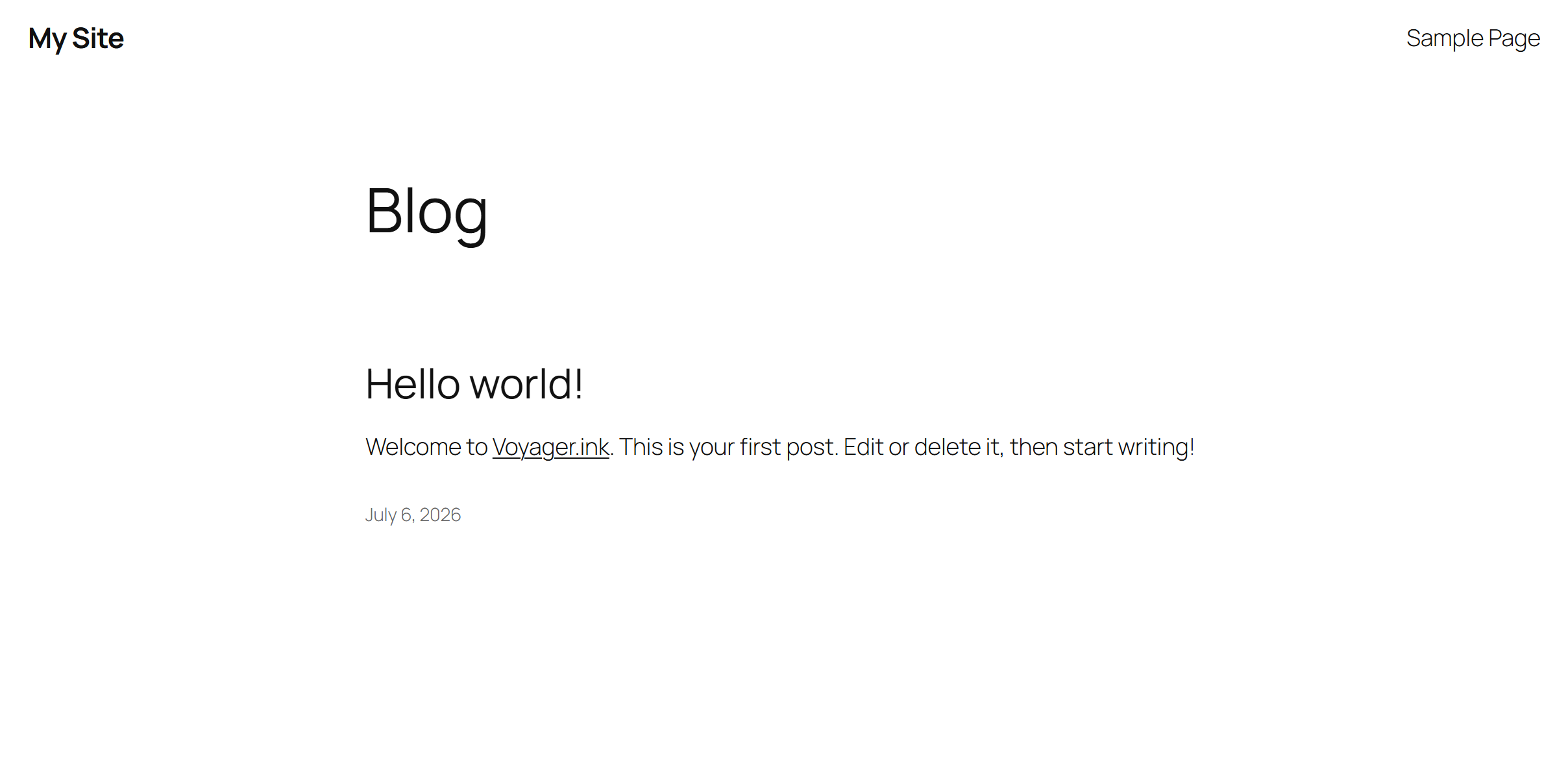
Your newly created website will look similar to this:
Return to your WordPress dashboard and navigate to:
Appearance → Themes
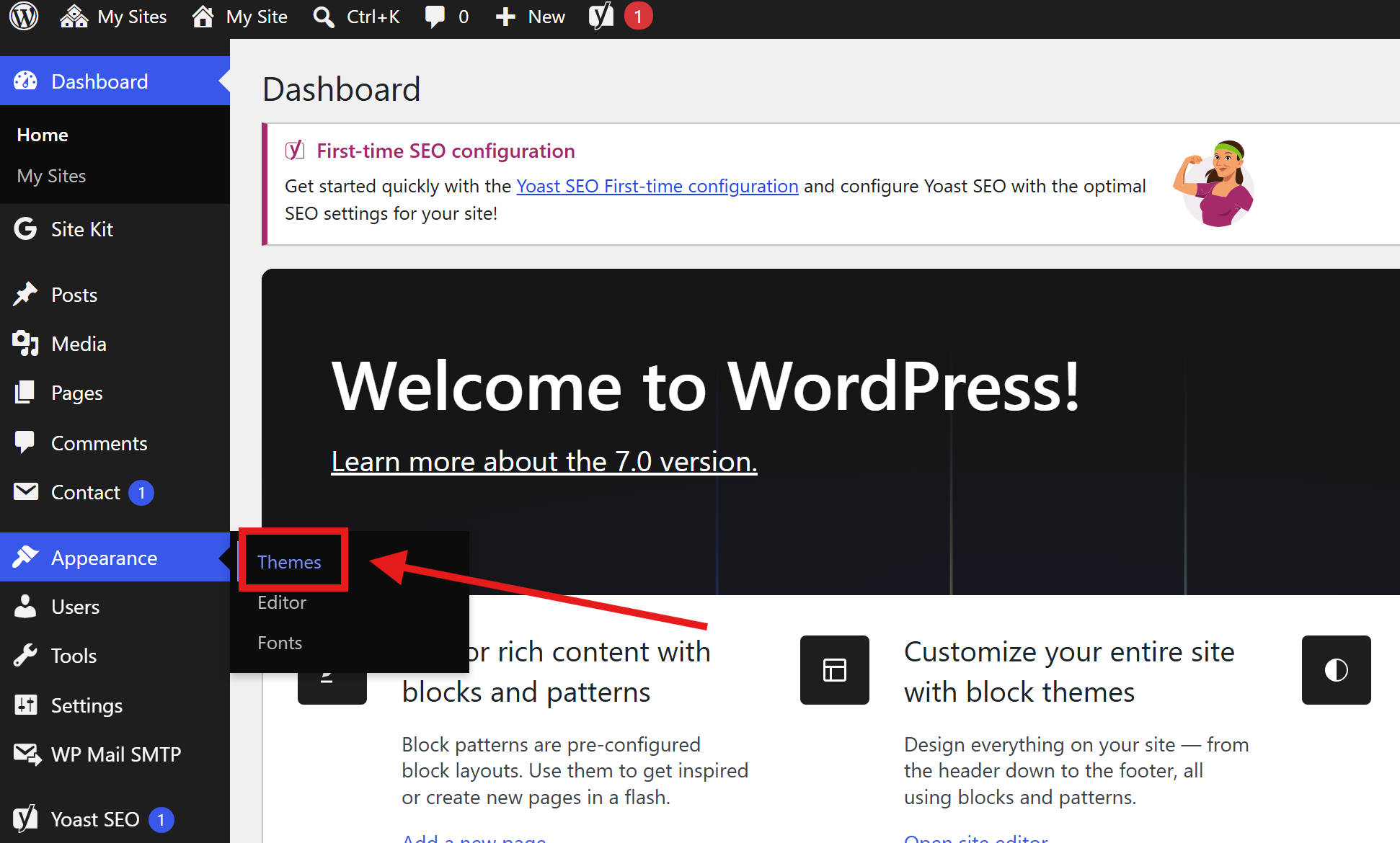
You will be redirected to the Themes section.
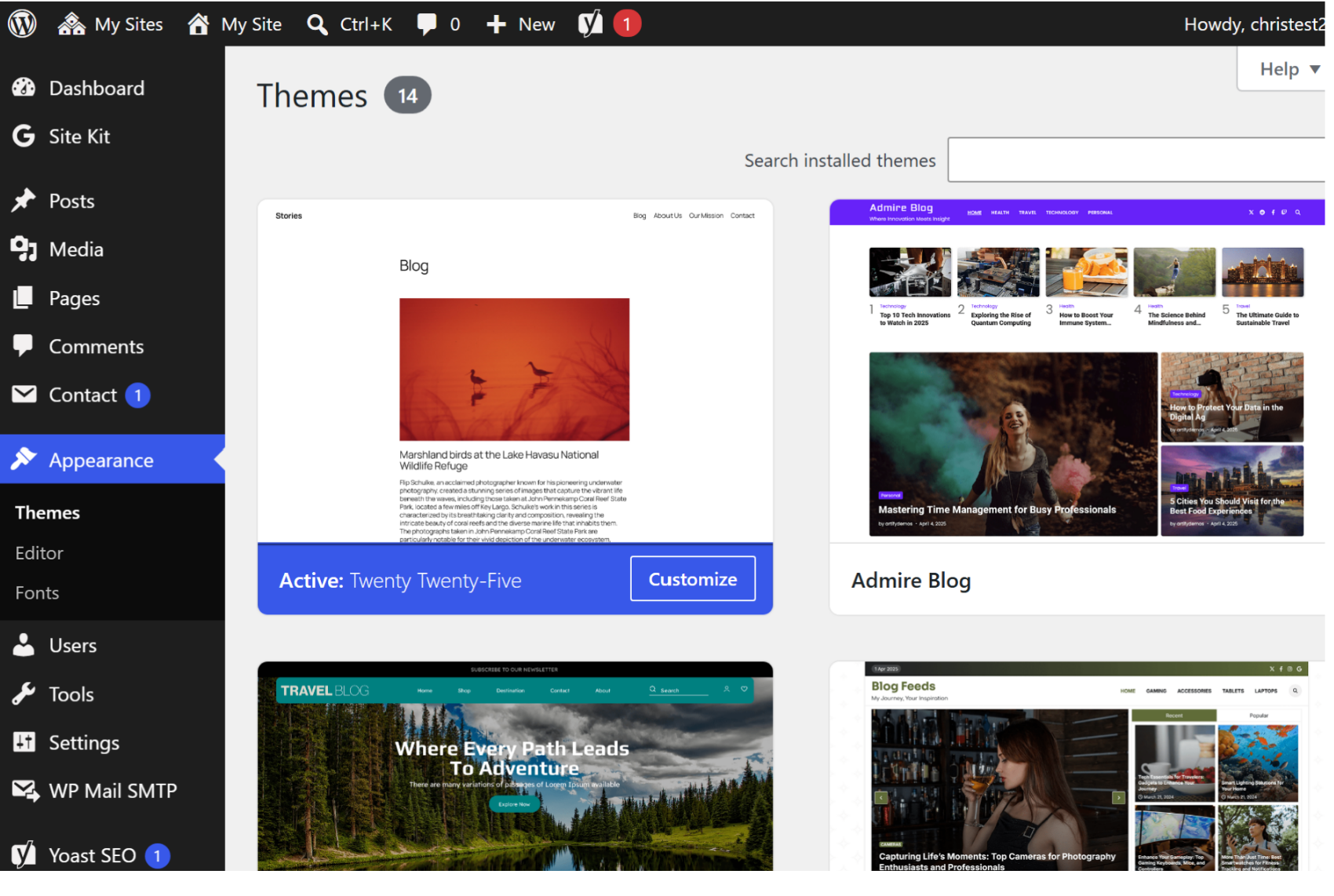
By default, your website uses the Twenty Twenty-Five theme. WordPress includes many free themes, so feel free to browse and choose one that matches your preferred style.
For this tutorial, we’ll use the Blog Feeds theme.
Select the theme and click Activate.
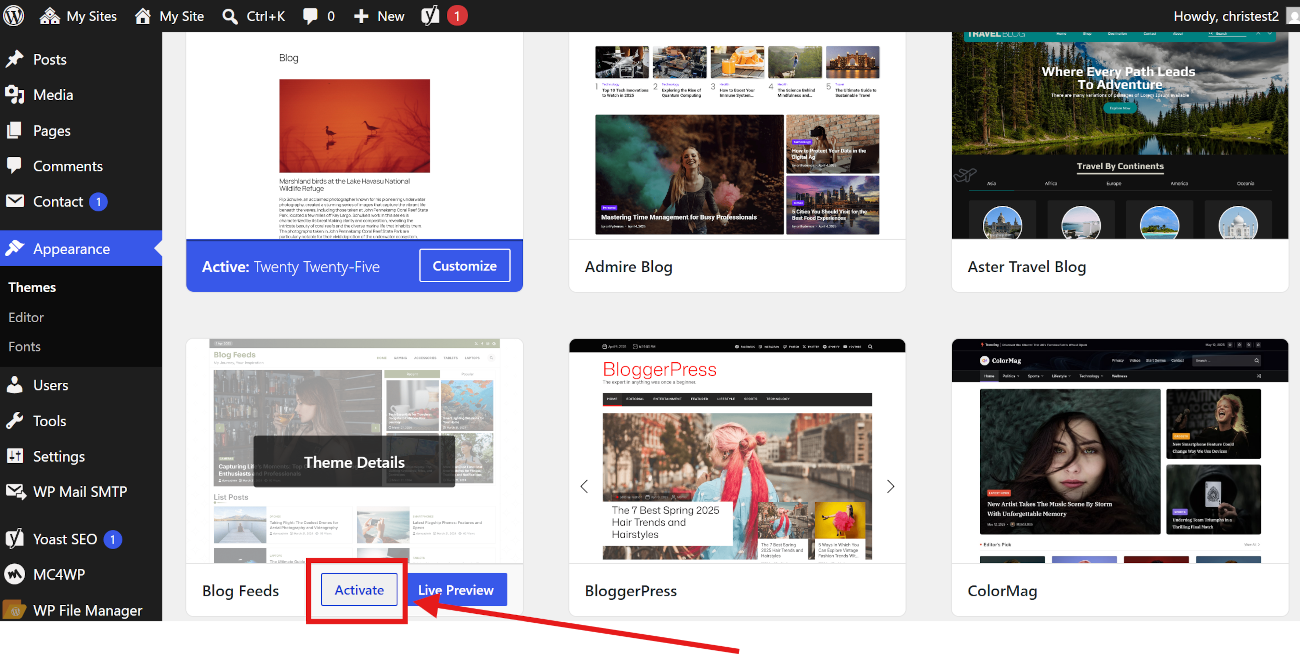
After activation, your website will immediately adopt the new design.
Step 4: Customize Your Theme
Every WordPress theme includes its own customization options. Some themes provide extensive settings, while others offer only basic controls.
You may also notice that some themes advertise a Pro version. Since Voyager currently supports only the free versions of WordPress themes, we recommend using the standard features and not upgrading to a Pro plan.
To begin customizing your website, navigate to:
Customize
from the top WordPress menu, or
Appearance → Customize
from the side WordPress menu
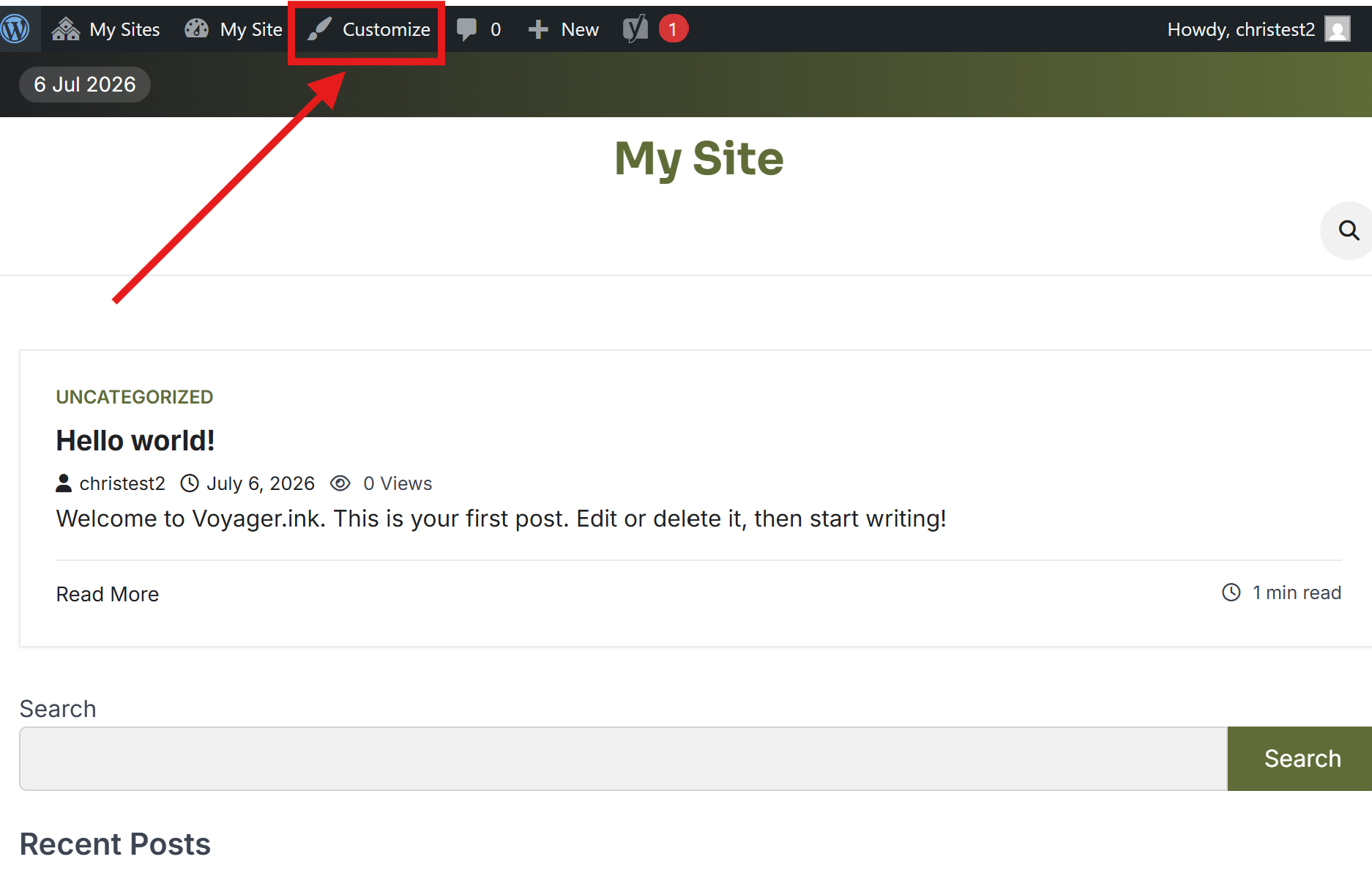
The WordPress Customizer allows you to modify many aspects of your website, including:
- Site Identity
- Menus
- Homepage Settings
- Colors
- Widgets
- Typography (depending on the theme)
- Additional theme-specific options
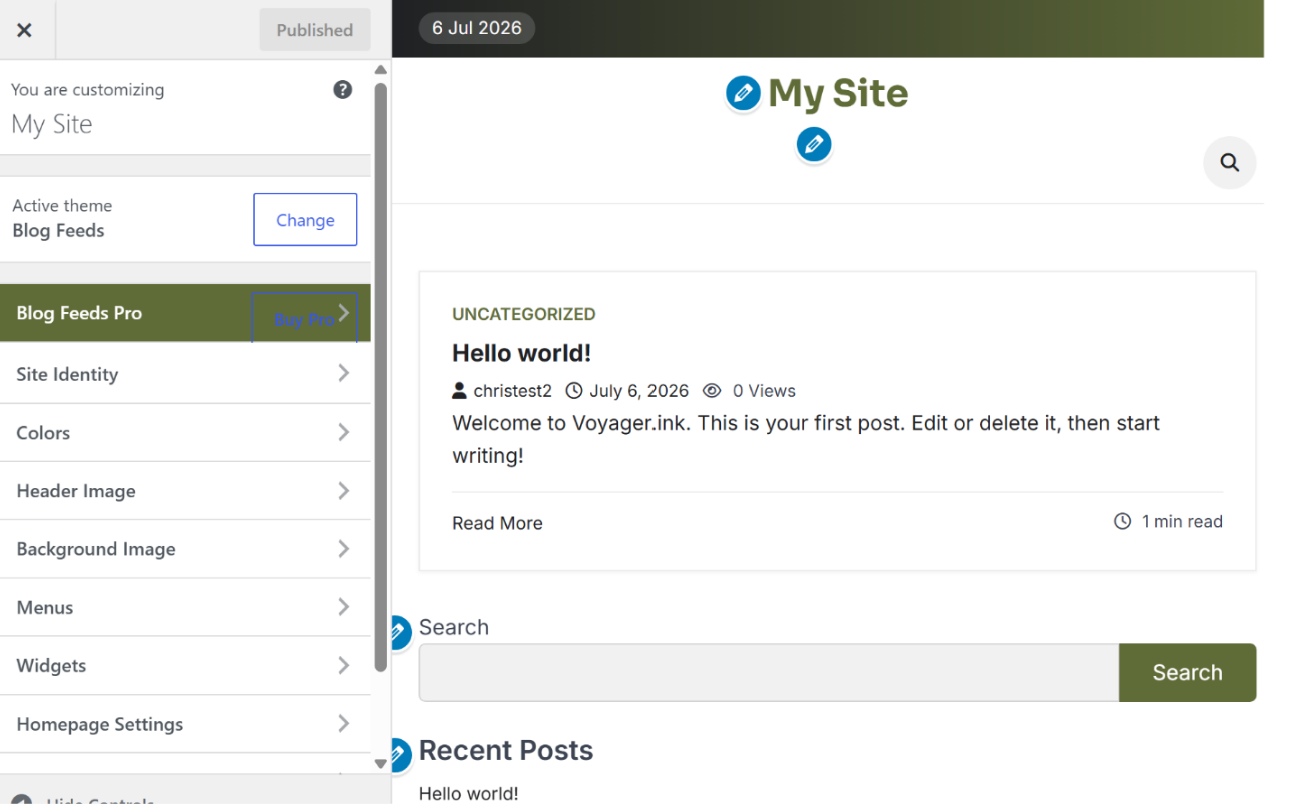
Feel free to explore these settings and experiment with different layouts and designs. One of the best ways to learn WordPress is by trying different options and seeing how they affect your website.
Step 5: Enable the Homepage Banner
A homepage banner helps your website look more polished and professional while highlighting your latest content.
For the Blog Feeds theme, navigate to:
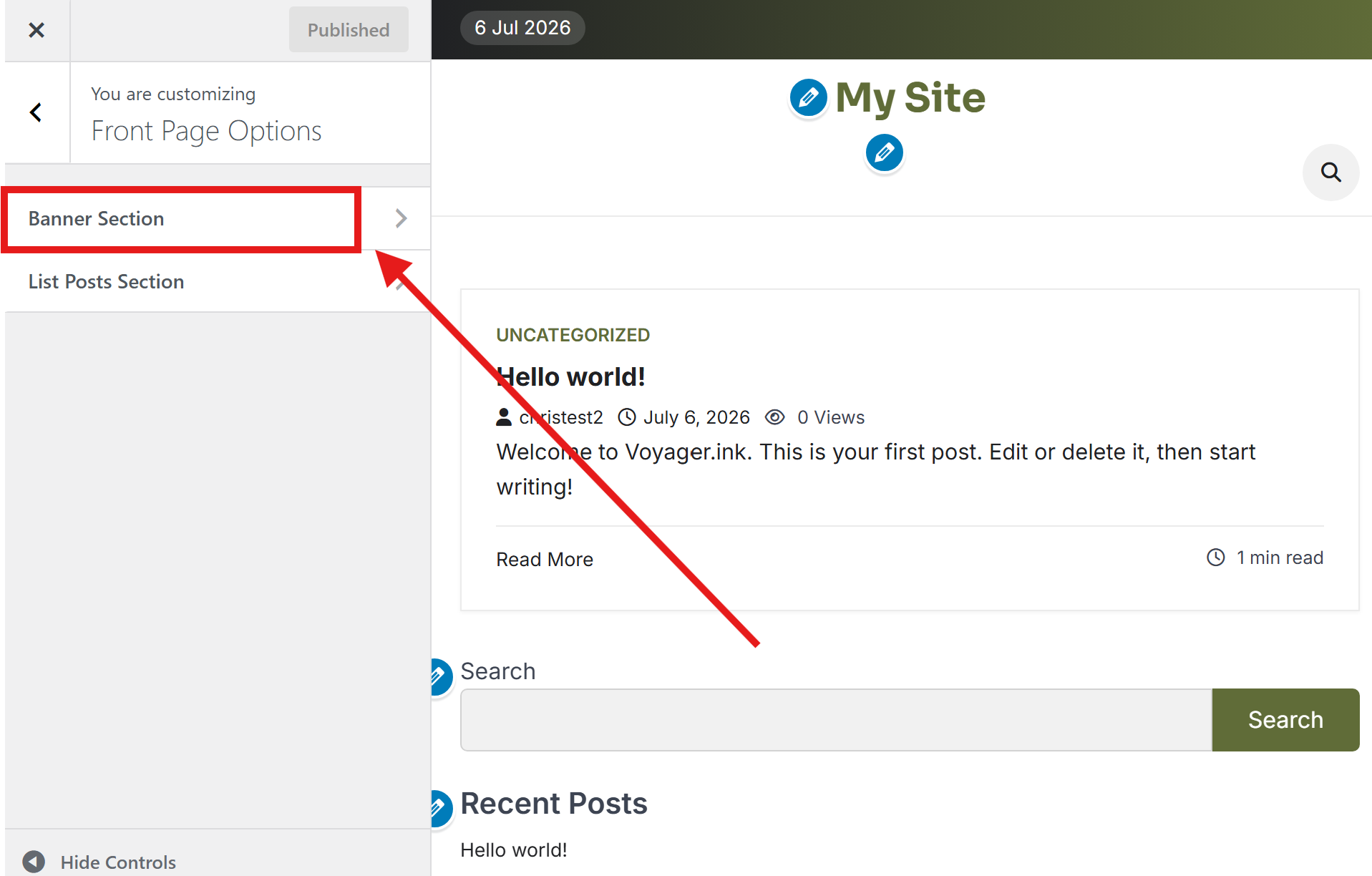
Front Page Options → Banner Section
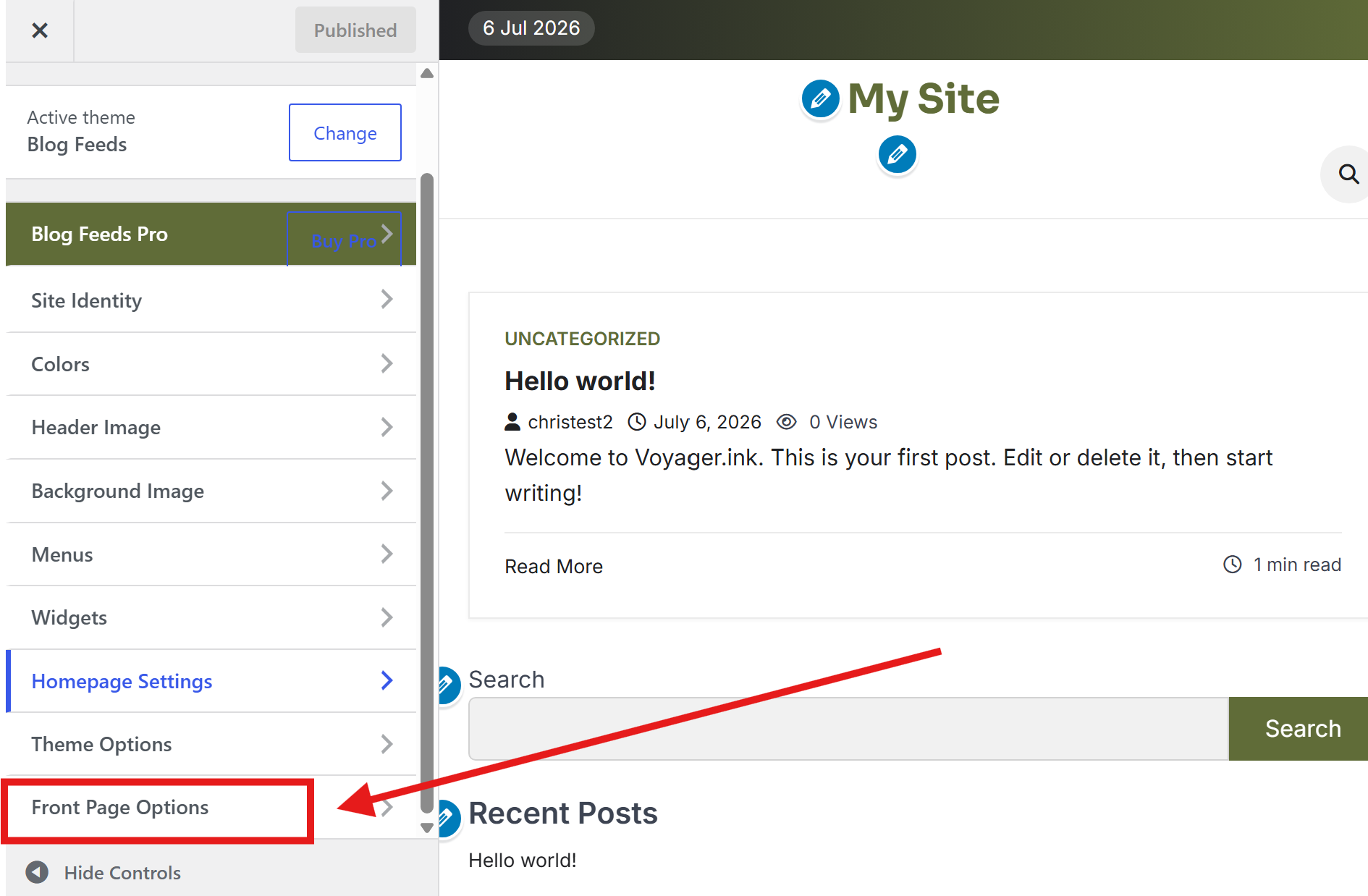
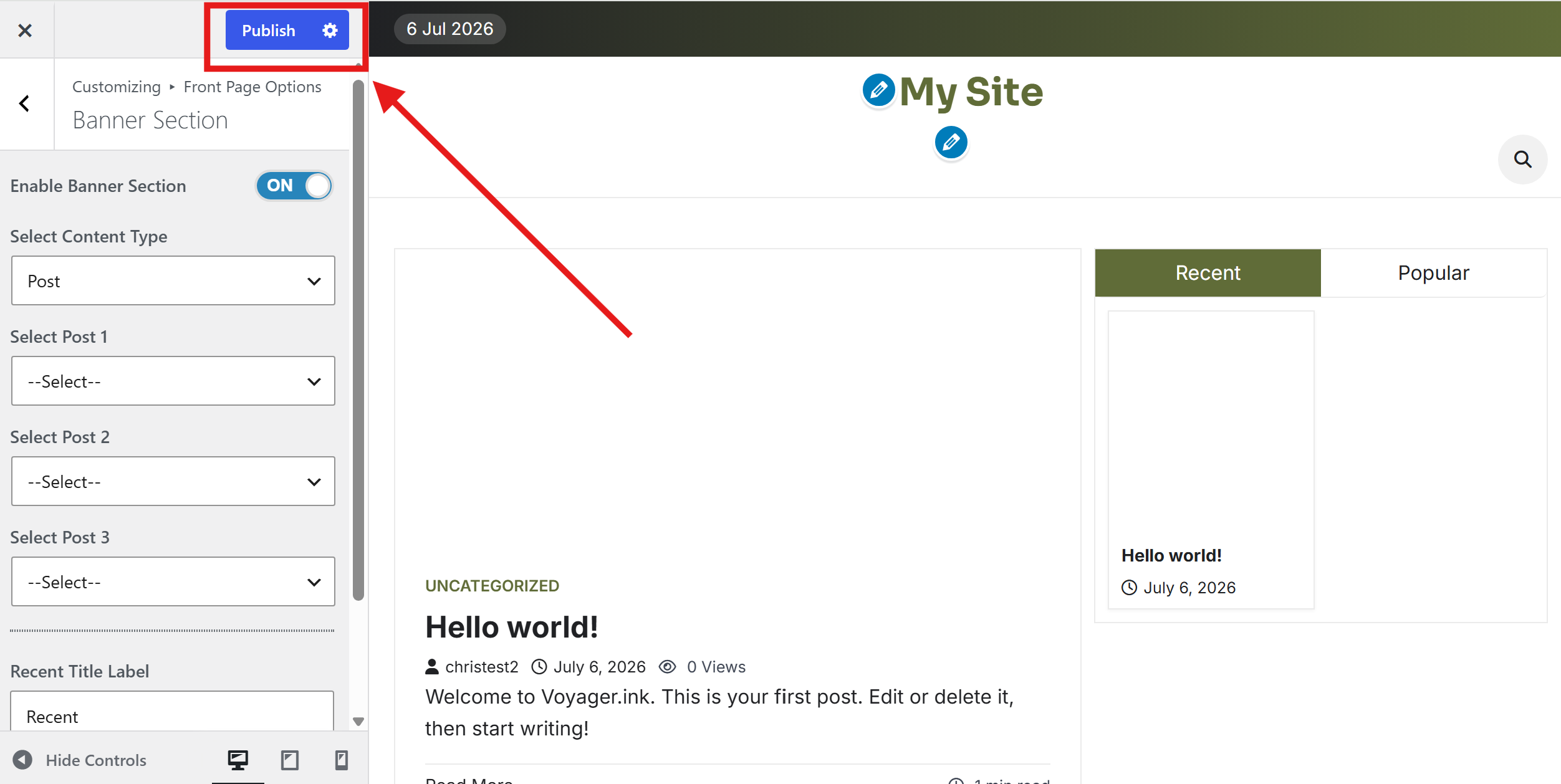
Enable the Banner Section.
Once enabled, click Publish to save your changes.
Now visit your website again.
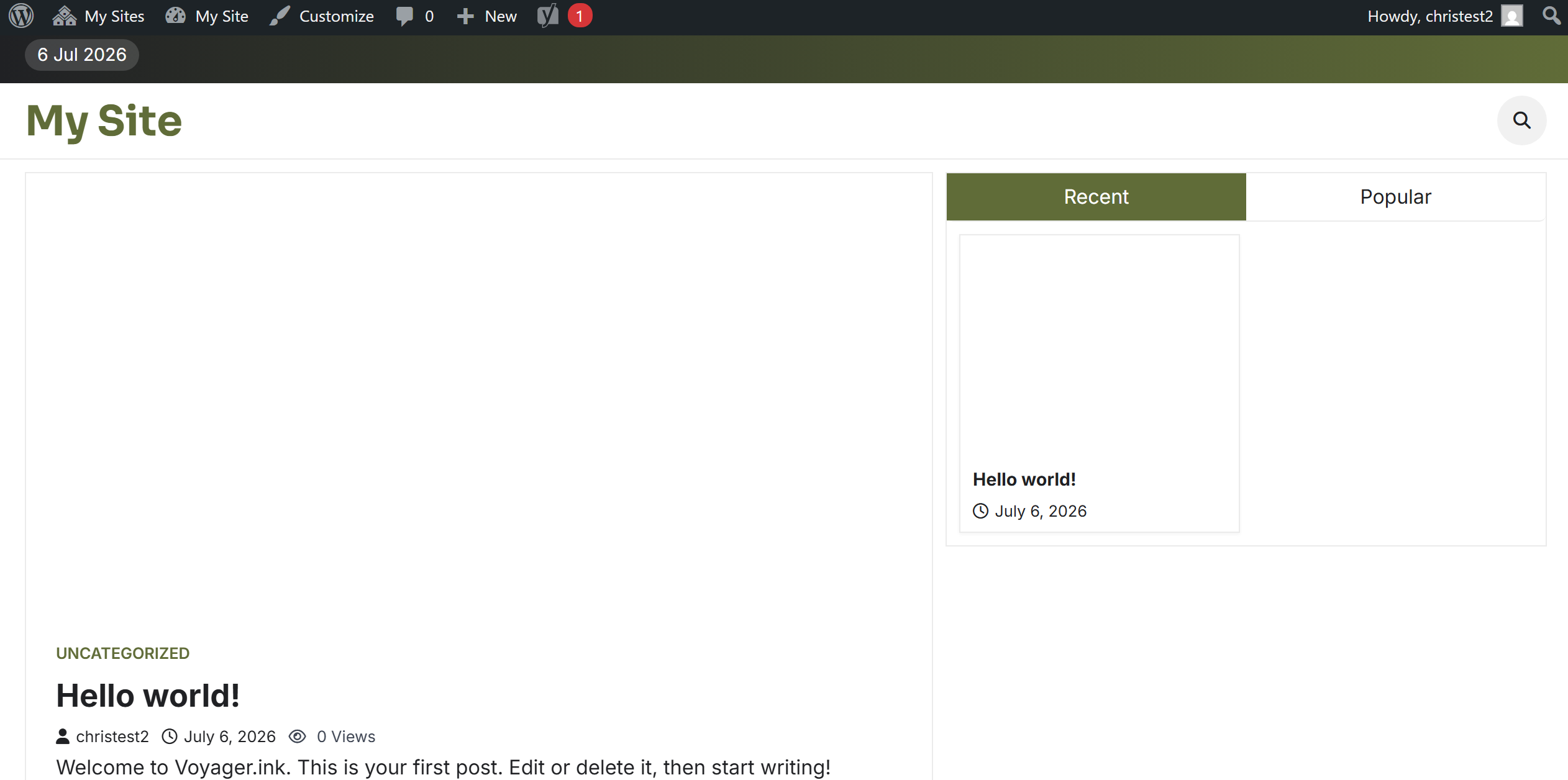
Your homepage now features a professional banner that showcases your latest blog posts, giving visitors a much stronger first impression.
What’s Next?
Congratulations! Your website is now customized and ready for content.
In the next guide, you’ll learn how to write your first blog post, publish it on your WordPress website, and automatically display it on your Voyager profile so other members can discover your work.